Guide for Wix Multi Vendor Store
Multi Vendor Store is a powerful app that transforms your single-vendor store into a complete multi-vendor marketplace. It allows multiple sellers to register, list, and manage their products, all under one store, while you remain in full control as the admin. With Multi Vendor Store, you can easily onboard vendors, assign commissions, monitor sales, and manage payouts through an intuitive dashboard. Each vendor gets their own profile where they can upload products, track orders, and communicate directly with customers.
How to Use in a Few Easy Steps
Step 1: Install the App on Your Site
• Go to the Wix App Market
• Search for Multi Vendor Store
• Click Add to Site
• The app will now be available in your Wix Dashboard and Editor.
Step 2: Managing Category
• Go to Catalog
• Go to Categories
• Click on Category Sync
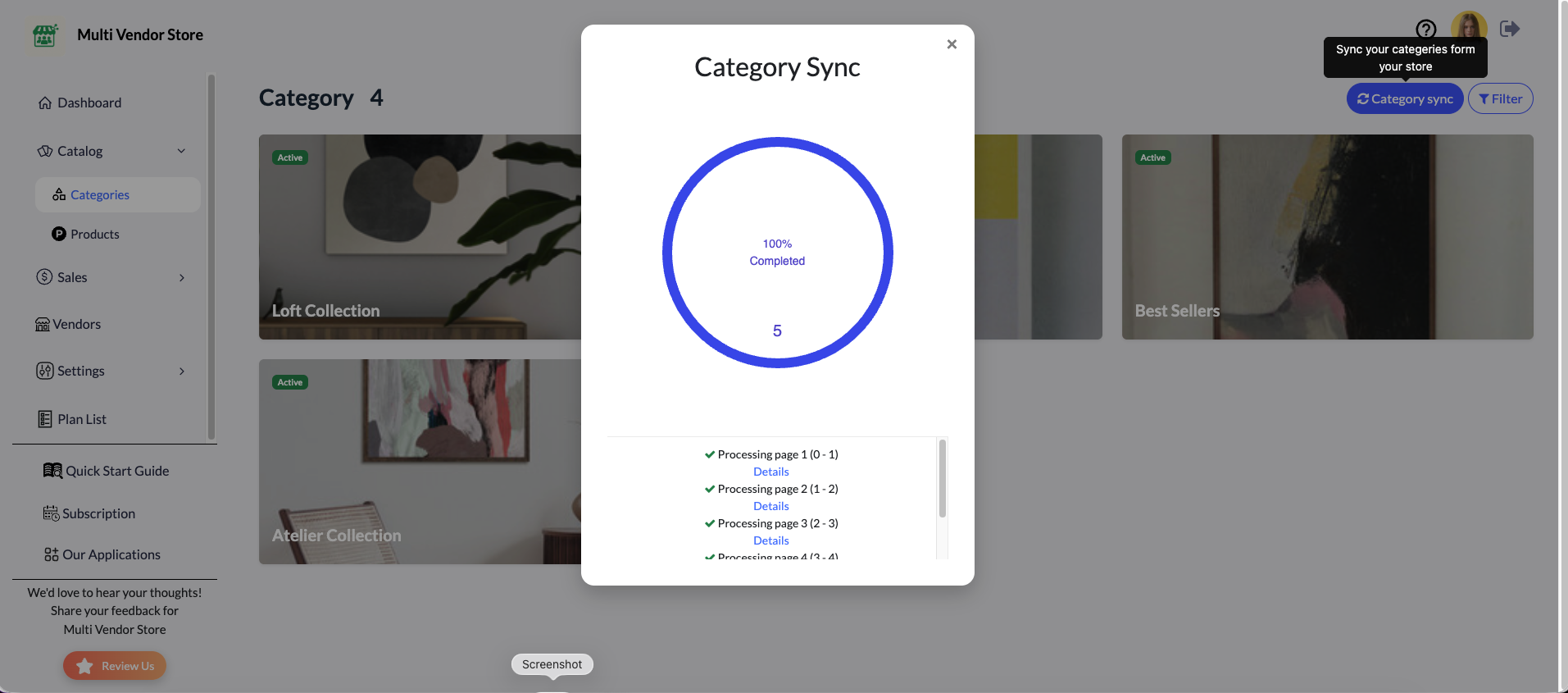
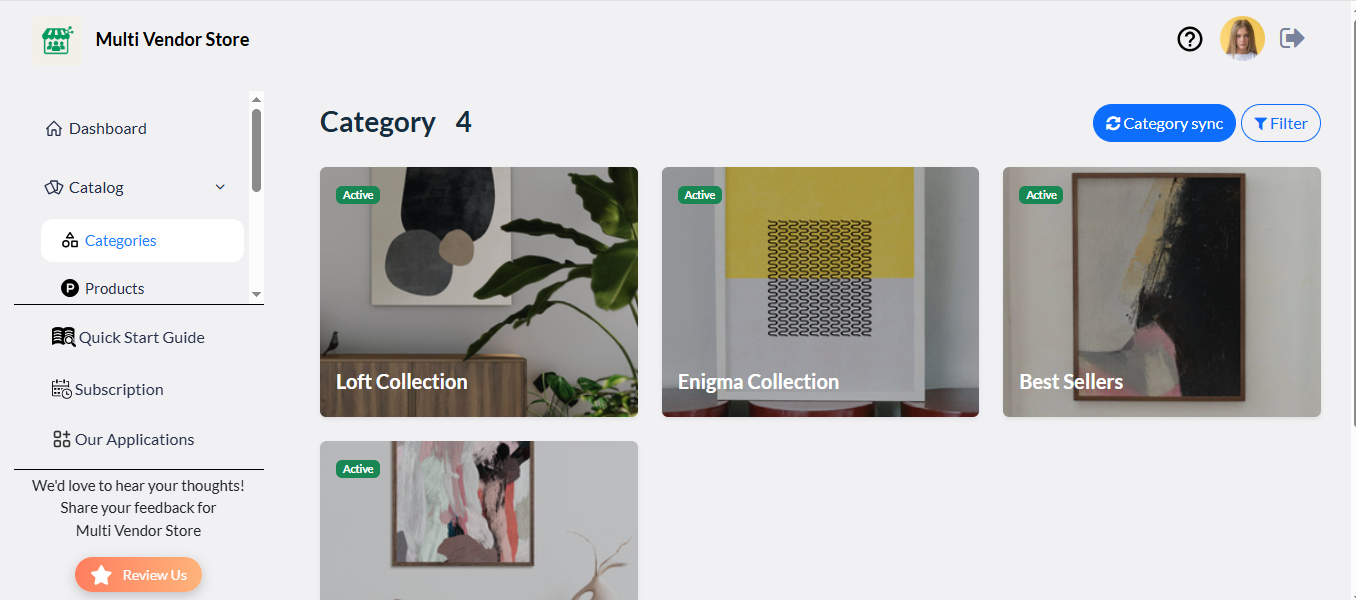
Step 3: Managing Products
• Click on Catalog
• Go to Products
• Click on Product Sync
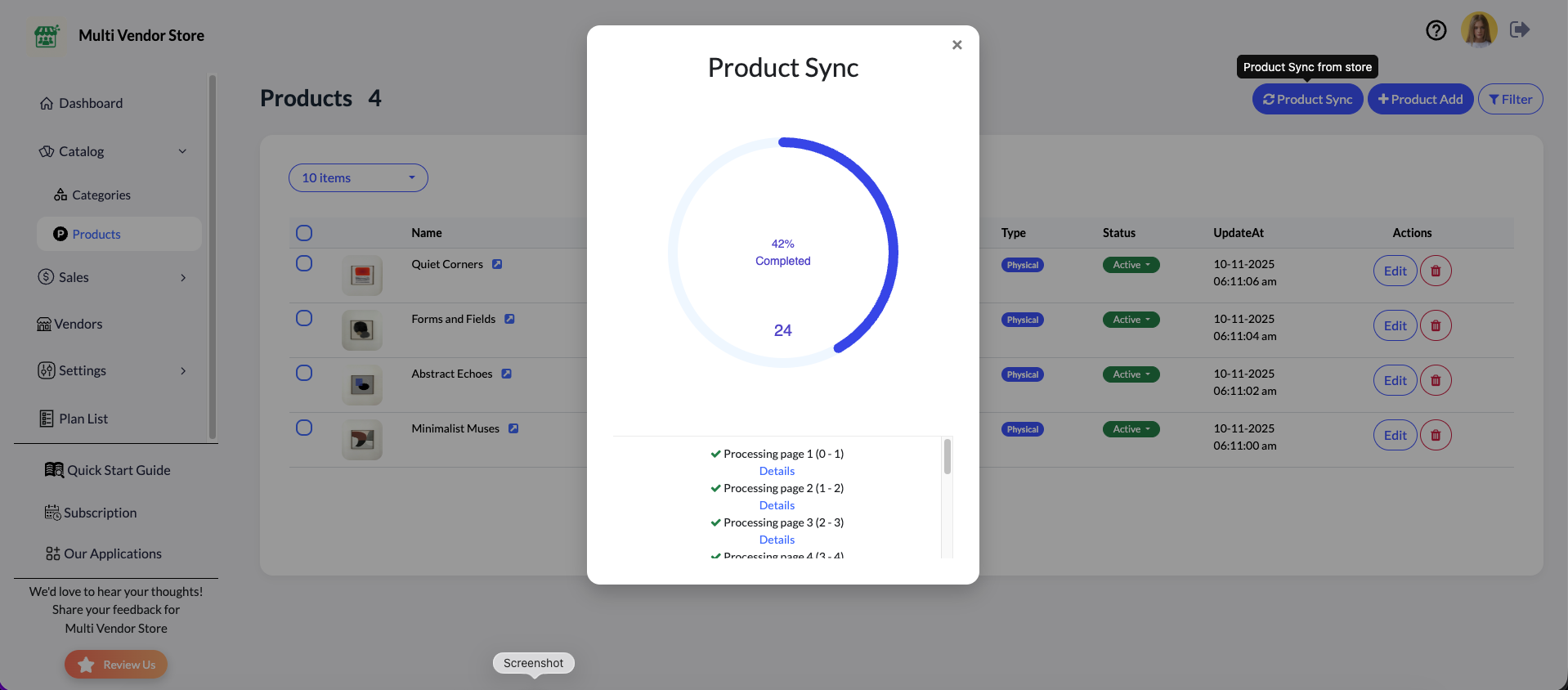
• Edit product details, prices as needed.
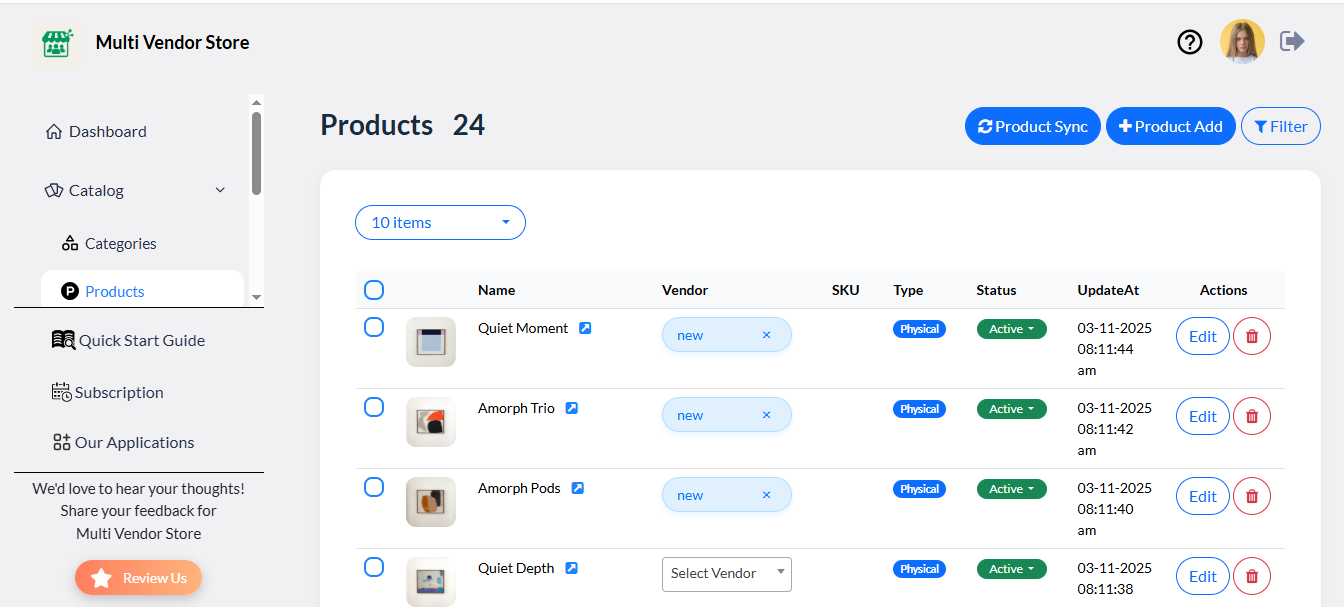
• Click on Product Add For new products
• Now vendors/admin can give product details and add new products
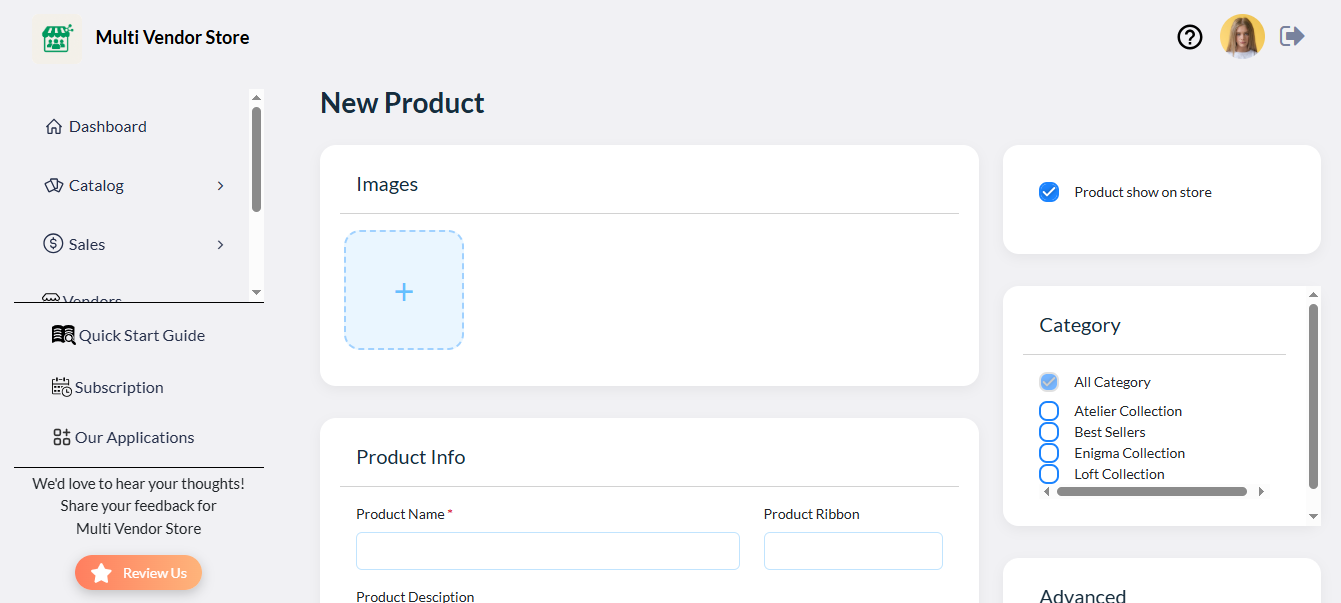
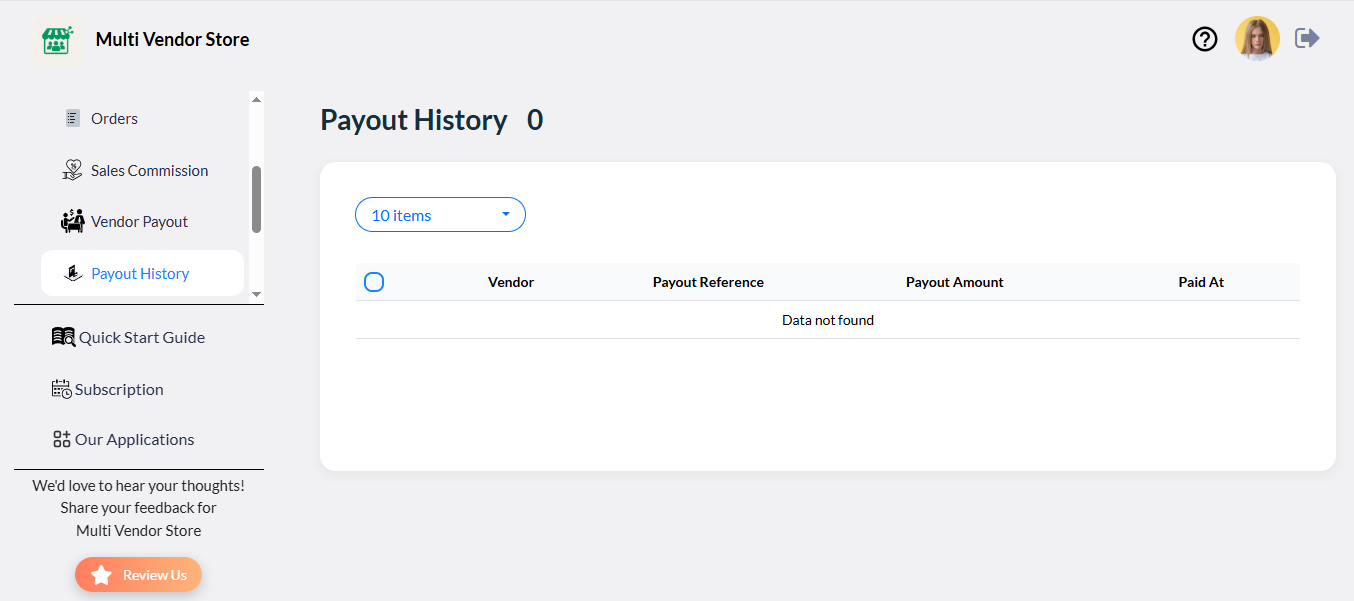
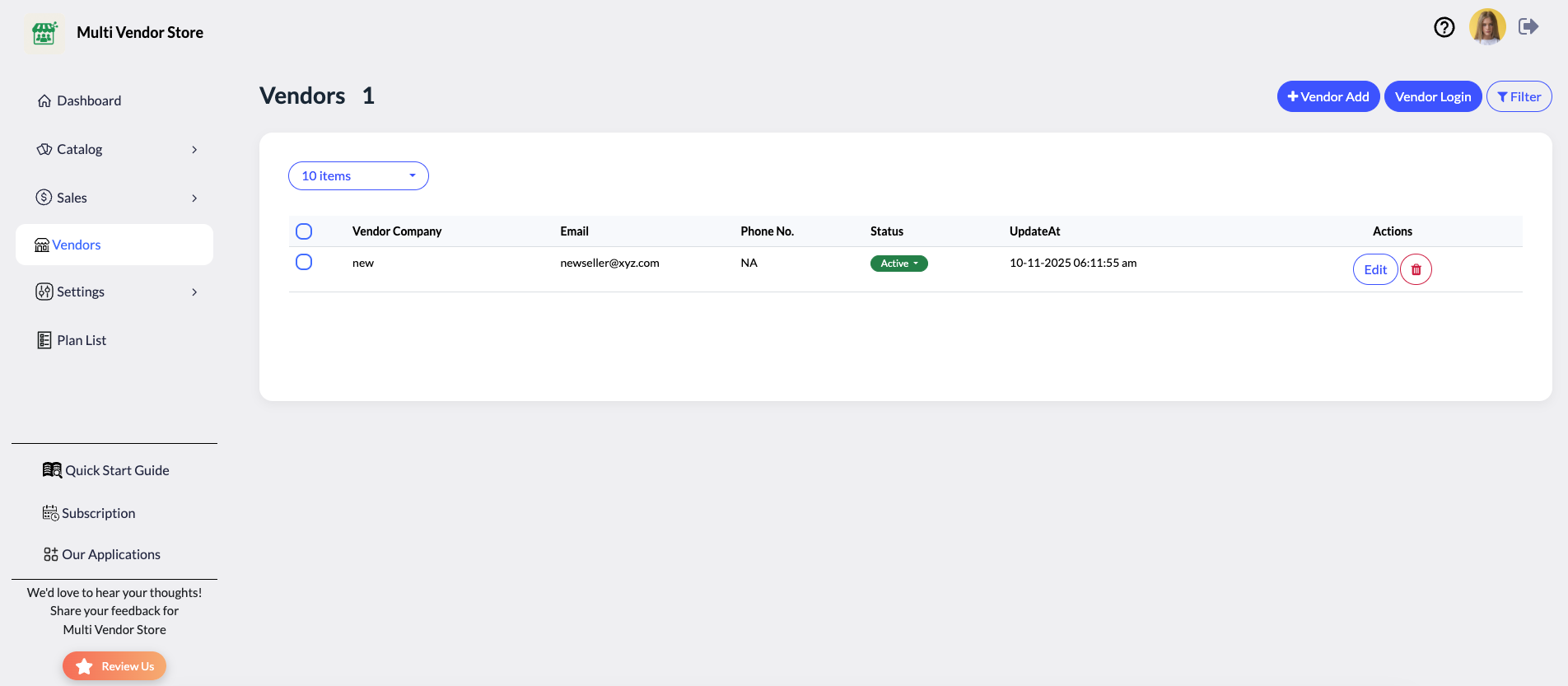
Step 4: Manage Sales, Payout, and Orders
1. Go to the where you see all details related to orders, commission, and payout
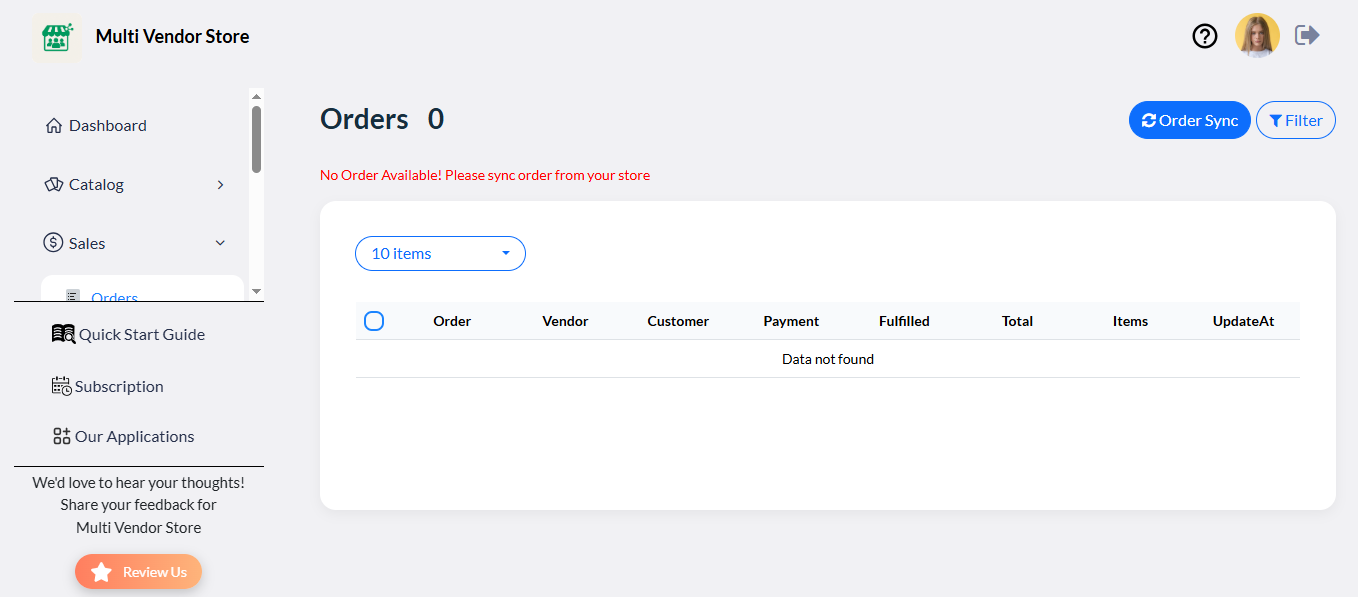
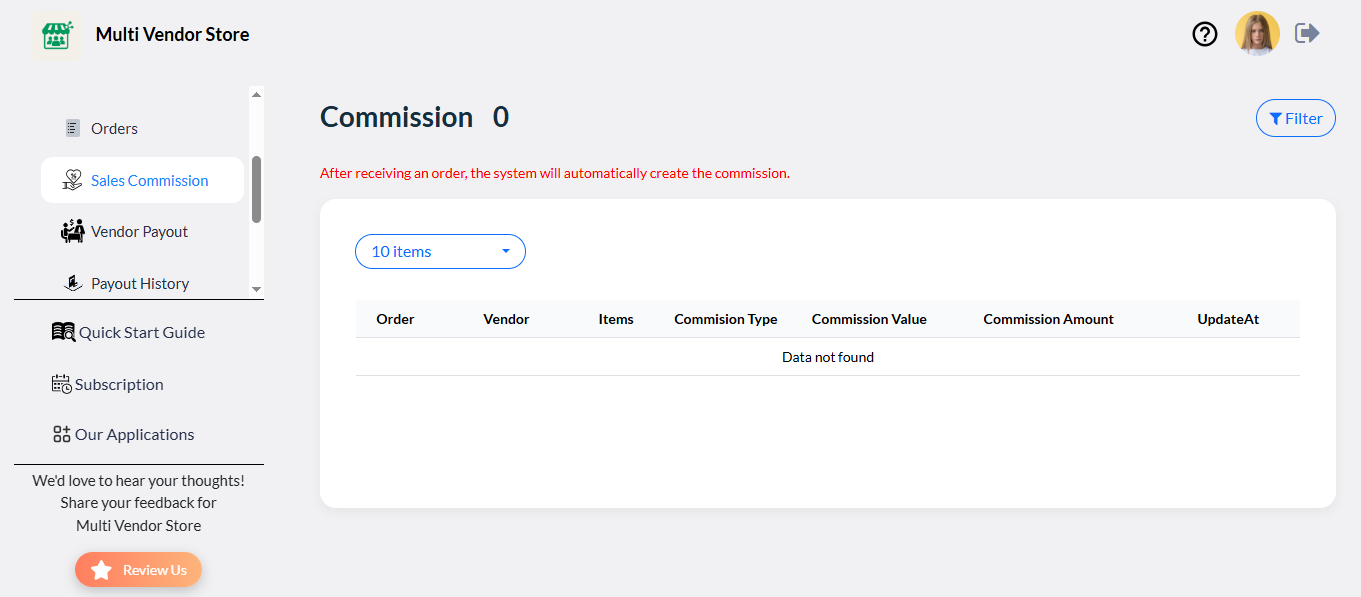
2. Track total sales, vendor performance, and order history.
3. Each vendor gets a Vendor Dashboard to:
• Upload and manage products
• View and process orders
• Track payout, and commissions
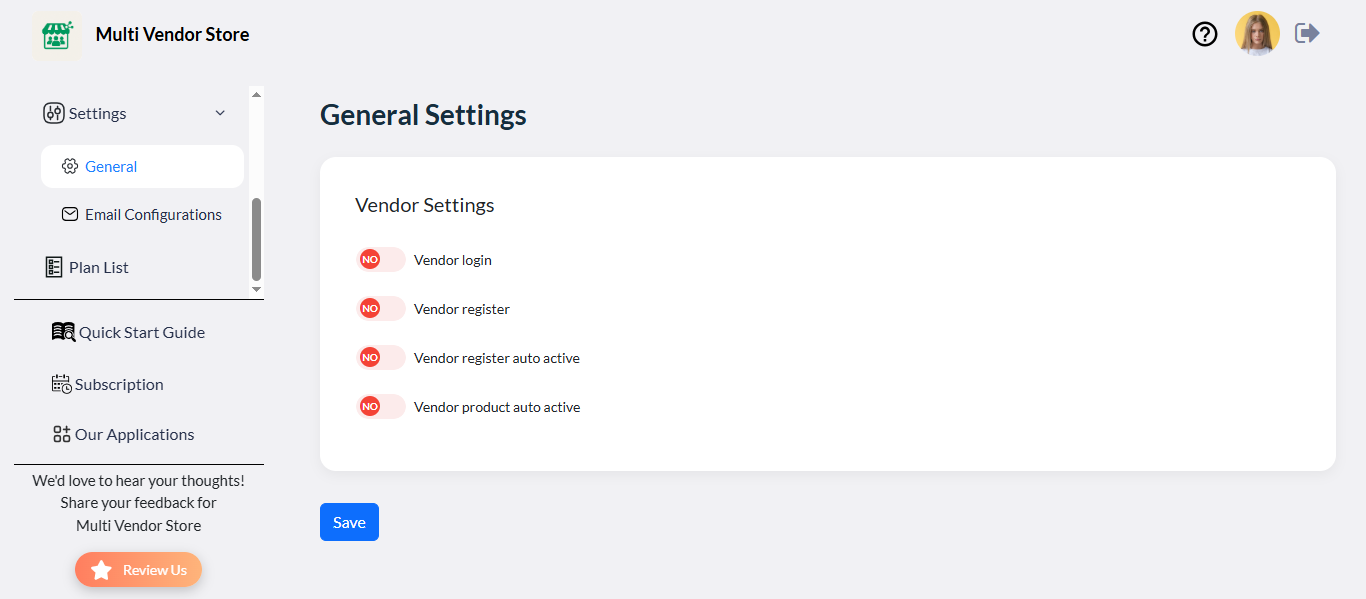
Step 5: Settings
• Click on General Settings
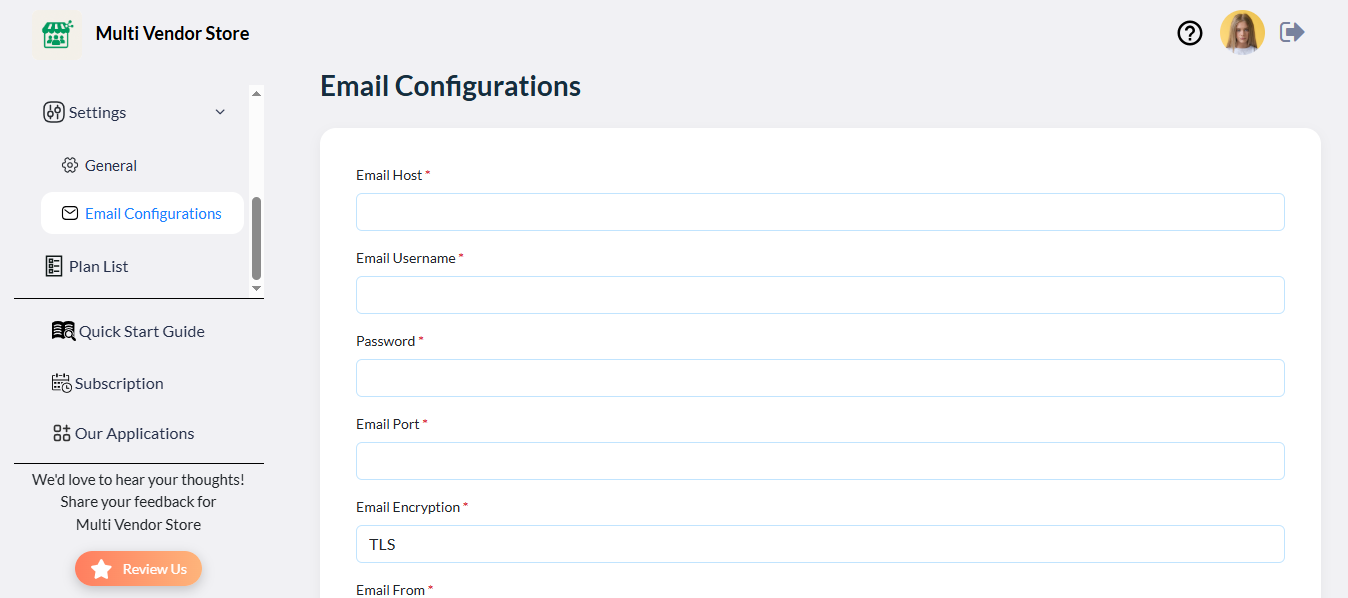
• The Email Configuration feature allows automatic communication between the store and vendors.
Step 6: Dashboard
1. The Dashboard is the central hub for managing your entire multi vendor store.
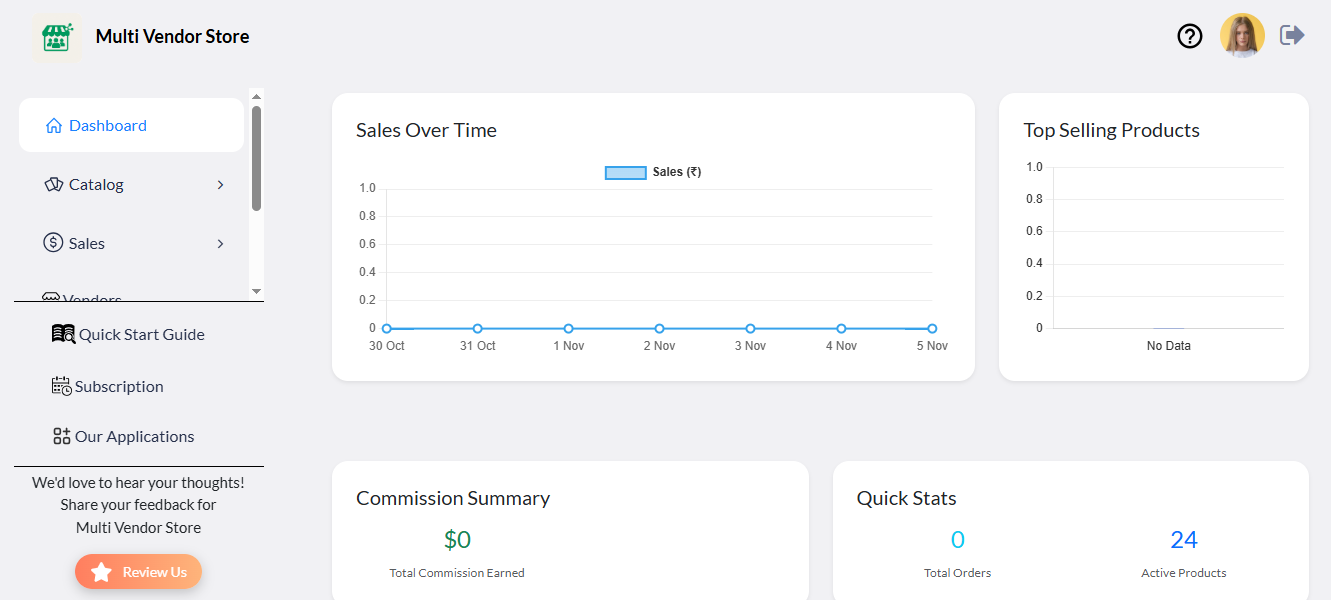
2. It provides a quick overview of:
• Total Products
• Orders and Revenue
• Pending Approvals
• Payment Status and Reports
From here, you can directly access important sections like Vendors, Products, Orders, Reports, and Settings.
For Customer Experience
• Customers can browse products from multiple vendors in one unified storefront.
• Each product page displays vendor information.
• Orders are automatically routed to respective vendors for fulfillment.
FAQs - Multi Vendor Store
1. Can I set different commissions for each vendor?
Yes, you can set both a default commission rate and custom rates for individual vendors from the Admin Dashboard.
2. Can vendors manage their own orders?
Yes, each vendor has a dedicated dashboard to manage their orders, products, and payments independently.
3. How can vendors join my marketplace?
Vendors can register using the Vendor Registration Form on your store. Admin can then review and approve their applications.
4. Do I need coding knowledge to use this app?
No, Multi Vendor Store is fully no-code. Everything can be managed visually from the dashboard.
5. Can I customize email notifications?
Yes, you can easily edit all email templates and sender settings under Settings → Email Configuration .
6. What happens if a vendor violates store policy?
Admin has full control to disable or remove any vendor account at any time.
7. Can I view reports by vendor or product?
Yes, reports can be filtered by date, vendor, or product category.
8. Are payouts handled automatically?
Payouts can be manual or integrated with third-party payment solutions, depending on your setup.
9. Is my data secure?
Yes, all vendor and customer data is stored securely and processed according to data protection standards.
10. Can vendors update their profile or store name?
Yes, vendors can edit their store details, logo, and contact info from their own dashboard.